Pages

Labels

Monday, July 11, 2011

How to Create a Hibernate Shortcut in Windows Vista


Using the Hibernate setting in Windows Vista is a great way to save power and to close your system quickly. And if you create a Hibernate shortcut on your desktop, you can send your computer to this semi-sleep state with the click of a mouse. In fact, unlikeSleep mode, when you Hibernate, there is no energy consumption at all.
Hibernate, like Sleep, is a way of closing your system without waiting for the extended shut down process and the even longer reboot when you're ready to start working again. When you set your computer to hibernate, your screens and open applicationsstay exactly where you left them. Although Hibernate can be slower to awaken than Sleep, it has the benefit of protecting work in progress.
When you put the computer in Sleep mode, all unsaved data is stored in the RAM memory. This is fine unless the power turns off or the battery drains. Without power, the contents of memory are lost. When hibernating, Vista saves a copy of the memory filesin a system file called hiberfil.sys.
Vista allows you to set up a Hibernate shortcut using a nifty but little-known program called shutdown that shuts down your system quickly — in many cases, without asking whether you want to save any work in progress.
1

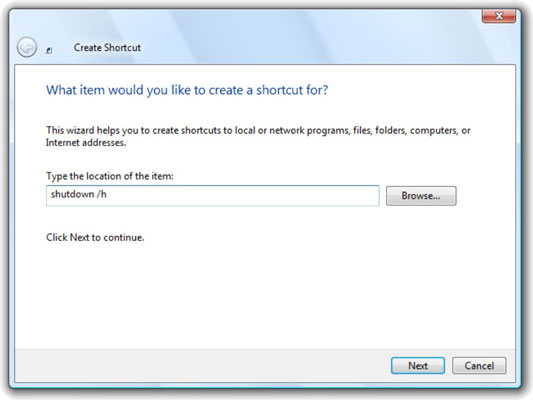
Right-click any empty location on your desktop and choose New→Shortcut.

The Create Shortcut Wizard appears.
2

In the Type the Location of the Item box, type shutdown /h and click Next.

It’s important that you have a space before the slash and no space after the slash.
3

In the Type a Name for this Shortcut box, give your shortcut a name.

Use something daring, like Hibernate.
4

Click Finish.

Vista puts a new shortcut on your desktop.
5

Right-click the shortcut and choose Properties. Click Change Icon to give your new shortcut a recognizable look.

Vista warns you that shutdown doesn’t have any icons and that you have to choose one from the list or specify a file.
6

Click OK.

You see the Change Icon dialog box.
7

Pick an appropriate icon for the shortcut and double-click it.

You can choose any icon you want, though it's best to choose something that might remind you of shutdown process, such as the “off switch” icon in the lower-right corner.
8

If you want to assign a Hot Key (a keyboard shortcut), click inside the Shortcut Key box and press the key combination you would like to use to activate this shortcut.

Some programs “swallow” hot keys, so you may have trouble getting a specific key combination to work when you’re using one of those voracious programs. Most programs, though, let unusual key combinations get through to Vista.
9

Click OK.

Your new, quick Hibernate shortcut appears on the desktop.
To test the new Hibernate icon, get a couple of programs running and double-click the Hibernate icon. Vista should take just a second to darken the screen and a couple seconds more to complete the transition to hibernation.
To bring your computer back, push the power button on your PC, and the Resuming Windows message appears. A moment later, you’re ready to log on — and resume from precisely where you left off.

How to Set Windows Vista to Reboot Overnight


Shutting a Windows Vista computer all the way down and then rebooting can cure many computer problems. When you reboot, Windows goes through several self-repair processes that really can make a difference. But if you leave the computer on all the time (even if it's sleeping or hibernating), the computer never gets a chance to do this cleanup process.
You can use the Windows Vista Task Scheduler to perform a complete reboot at a time when you don't need to use your computer. The reboot takes the computer back to the Windows logon screen. When you log on in the morning, Vista restores most of the programs you were using to the point they were in when you shut down.
The operative word there: most. Any programs that register themselves with Vista (including all the Microsoft Office programs, Internet Explorer 7, and Firefox 2) get restored to where they were before the reboot. Many other programs, particularly older programs (such as WordPad and Paint), won’t reappear. If you leave unsaved work open in those programs, when you come back after the automatic restart, any changes you made are lost.
With that important warning, here's how to make Vista reboot automatically overnight:
1

Make sure your user account has a password.

You can run scheduled tasks only for accounts with passwords.
2

Choose Start→All Programs→Accessories→System Tools→Task Scheduler.

After you click Continue on a User Account Control warning message, Vista shows you the Task Scheduler.
3

On the right, under Actions, click the Create Task link.

The Task Scheduler shows you the Create Task dialog box. This rather odd buzzard works like a wizard, but it doesn’t behave like one. Follow along closely.
4

In the box marked Name, type a name for the restarting job.

For example, Dummies Restart.
5

Under Security Options, select the button marked Run Only When User Is Logged On.

Don’t worry, the scheduled task will run even if the PC is in “sleep mode.”
6

Check the box marked Run with Highest Privileges. Click the Triggers tab. At the lower left, click New.

The Task Scheduler brings up the New Trigger dialog box.
7

Under Settings, click Daily. For a Start time, choose a time when you’re not likely to be using the computer. Click OK.

For example, you can choose to run the reboot at 4:00 in the morning every day if it's unlikely that you’ll be using the computer at 4:00.
Think about Vista’s other scheduled tasks when setting the reboot time. You don't want the reboot to interfere with other activities like a defrag run.
8

Click the Actions tab. At the lower left, click New.

You see the New Action dialog box.
9

In the Program/Script box, type shutdown, and in the Add Arguments (Optional) box, type /g /c "Rebooting the computer" and then click OK.

It’s important that you have no spaces after the slashes and a space in front of the second slash only. You can put any text you like between the quotes. Whatever you put there will appear while the shutdown is in progress.
10

Click the Conditions tab. If you keep your computer plugged in all the time, check the box marked Wake the Computer to Run This Task.

If you're using a laptop that isn't plugged in all the time, consider whether you want to run the task even if the computer isn’t plugged into the wall and then make the change accordingly.
11

Click OK.

The Task Scheduler displays a password prompt.
12

Type your current password into the box and click OK.

Your new task appears in the Active Tasks list at the bottom of the Task Scheduler.
The password must be valid when the shutdown command runs. So if you change your password at any time in the future, you have to come back to the Task Scheduler and change the password here, too.
13

Close out of the Task Scheduler and restart your computer.

Scheduled tasks don't always “take” until the computer is restarted.